

M365 groups – 5 frequently asked questions, simply explained
Microsoft 365 (M365) groups are a key component of the Microsoft ecosystem. They are often created automatically—for example, when a new team is set up. However, many users aren’t quite sure what M365 groups actually are, how they work, or how they differ from traditional groups.
In this article, we provide a practical overview and answer 5 frequently asked questions about M365 groups—clearly and simply.
Index
1. What types of groups exist in Entra ID?
Microsoft Entra ID (formerly Entra ID Active Directory) supports various types of groups, which can generally be divided into two categories:
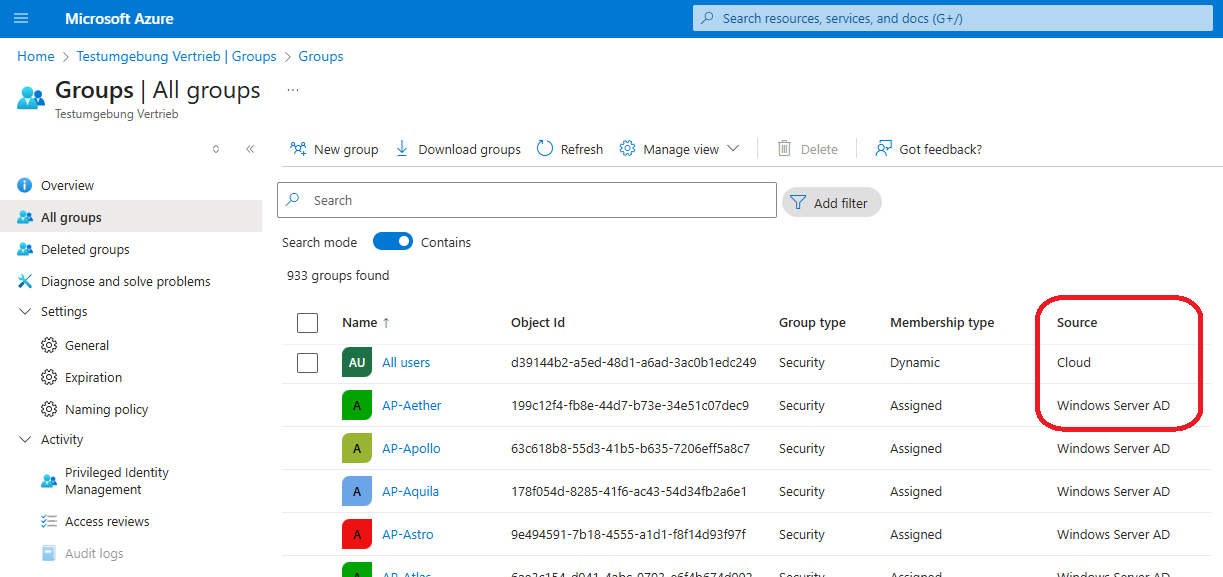
Cloud-native groups:
Admins create and manage these groups directly in Entra ID. They include:
- Security groups: Primarily used to assign permissions to resources within Microsoft services.
- Distribution groups: Used to send emails to multiple users at once.
- Mail-enabled security groups: A combination of a security and distribution group—with an email address and permission features.
- Dynamic distribution groups: Members are added or removed automatically based on attributes (e.g., department = “Sales”).
- M365 groups: These combine the benefits of email distribution lists, SharePoint, Teams, and calendars into one smart group.
Synchronized groups:
In contrast, these groups originate from on-premises Active Directory and are synced to the cloud using Entra Connect. Most of these are traditional AD security groups.
2. What is a Microsoft 365 group?
In short, a Microsoft 365 Group simplifies collaboration in Microsoft 365 by grouping users and automatically giving them access to a set of tools and resources. They are ideal for project teams, departments, or any collaborative workgroup.
What gets created automatically with a Microsoft 365 Group?
Microsoft 365 automatically provisions the following resources by default:
| Resource | Description | Created Automatically? |
| Outlook mailbox | Shared group account with email address | ✅ Yes |
| Calendar | Group calendar for shared events | ✅ Yes |
| SharePoint team site | Shared document library | ✅ Yes |
| Planner plan | Task planning for group projects | ✅ Yes* |
| OneNote notebook | Shared digital notebook | ✅ Yes* |
| Teams workspace | Chat, files, and tabs—if created through Microsoft Teams | ✅ Only if created via Teams |
| Power BI workspace | For shared dashboards and reports | ❌ Optional |
| Yammer community | Social networking for group communication | ❌ Optional |
* Some resources like Planner and OneNote are created on first use.
What is the purpose of an M365 Group?
It controls access to Microsoft 365 resources:
- Anyone who is a member of the group automatically has access to all associated content—no separate permission setup required.
- Perfect for teams, departments, or working groups that collaborate on documents, tasks, or communications.
🔄 How it differs from traditional groups:
| Feature | M365 Group | Traditional AD / Security Group |
| Resource provisioning | Automatic (SharePoint, Calendar) | None |
| Use case | Microsoft 365 services (Teams, etc.) | On-prem / specific permission assignments |
| Management | Cloud-based (Entra ID) | Local or synced (AD) |
| Nesting (Nested Groups) | ❌ Not possible | ✅ Possible |
Important:
As a result, M365 Groups cannot be nested, meaning they are not suitable for hierarchical permission structures like traditional AD groups.
3. How is an M365 Group created?
For example, M365 Groups can be created in several ways:
- Via the Microsoft 365 Admin Center or Entra ID portal: Admins can manually create a group there.
- Using PowerShell: Microsoft provides various cmdlets for automated group creation for advanced users.
- Automatically through Microsoft 365 services like Teams or Outlook:
Whenever a user creates a new Microsoft Team, an M365 Group is automatically created in the background—including a SharePoint site and email address.
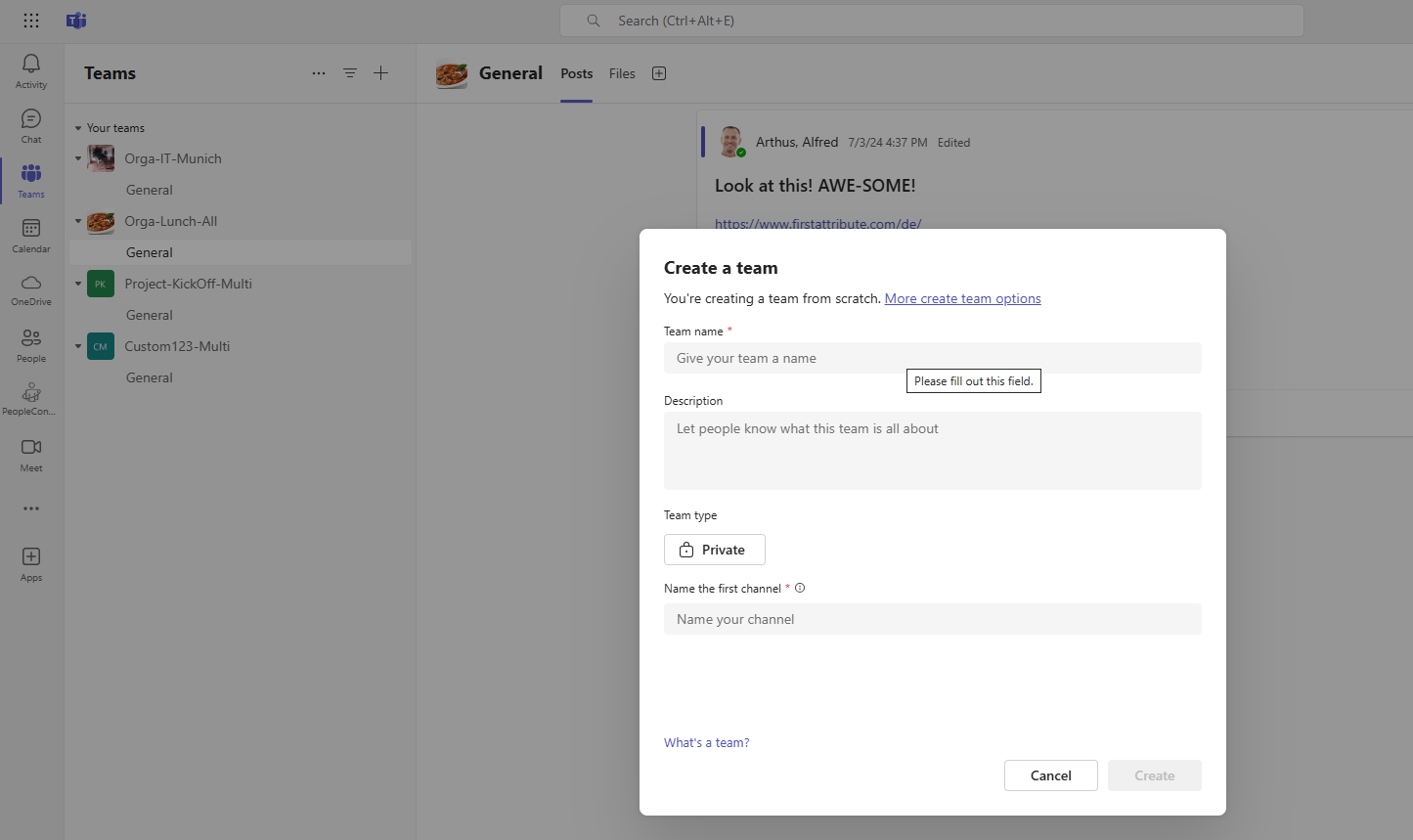
Create a new group via Microsoft Teams
Set up a new group using Microsoft Outlook
Because M365 Groups can be created in different places, they can also be created by different people: not only by the IT department, but also by a manager or employee—for example, through Teams.
Therefore, it’s important to not only know where M365 Groups can be created, but also who is authorized to do so.
4. Is it possible to create a M365 group without an associated SharePoint site?
Officially, every M365 group is linked to a SharePoint team site. This is part of the holistic collaboration concept—whether the site is actively used or not doesn’t matter.
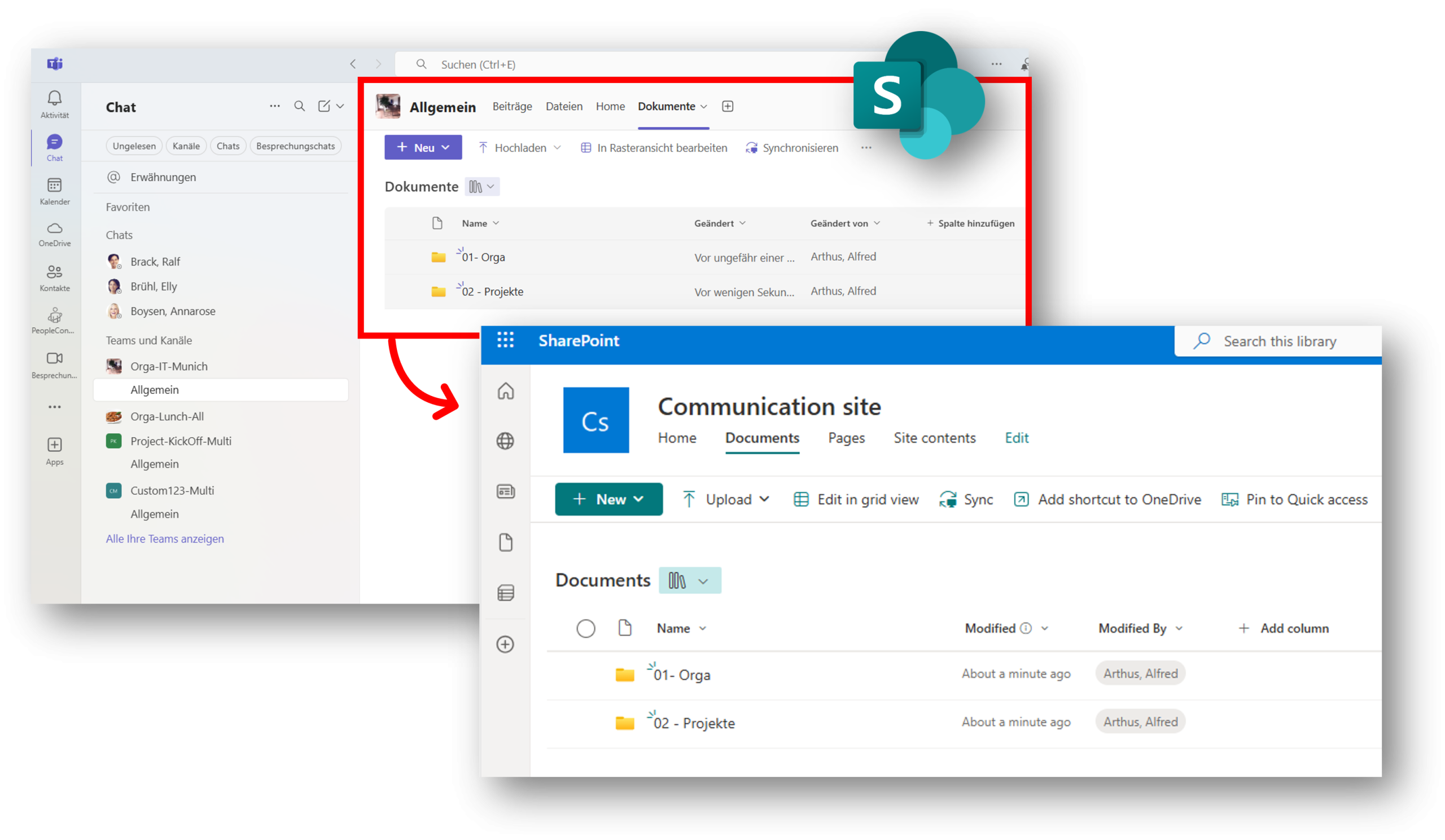
If you specifically need a group without SharePoint, you can use alternative group types instead:
- Mail-enabled security groups (for email and permissions)
- Distribution groups (for email communication only)
Note: These alternatives do not offer the full functionality of M365 groups and are not equivalent replacements.
In exceptional cases, administrators can use PowerShell to delay or bypass the creation of SharePoint elements—but Microsoft does not recommend this approach as standard.
5. Is it possible to convert AD groups into M365 groups directly?
No – a direct conversion is not possible, as M365 groups are a separate cloud group type and functionally differ significantly from classic AD security groups.
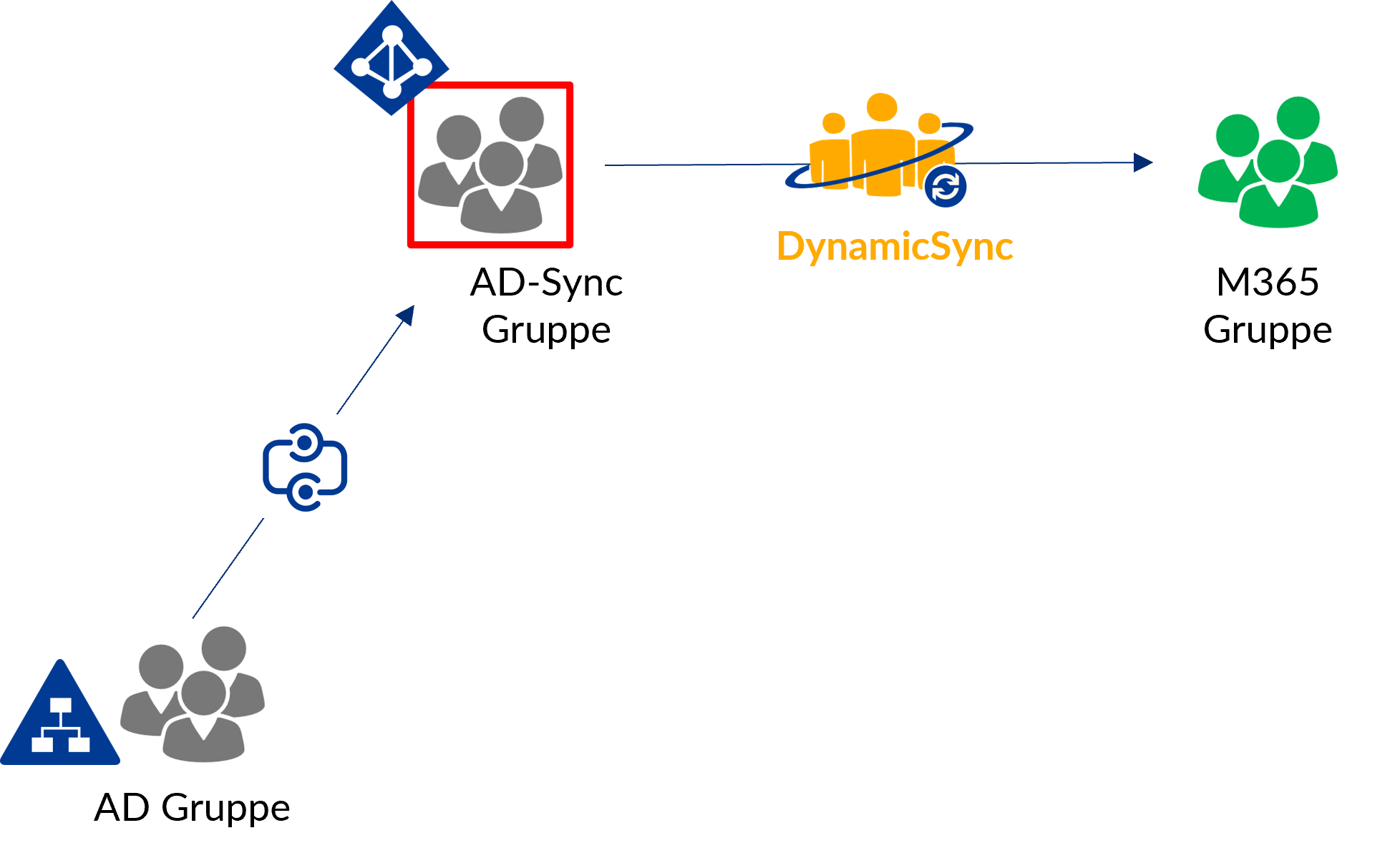
BUT there is an efficient solution for hybrid environments:
DynamicSync – Automatic synchronization of group memberships
With our software solution DynamicSync, you can synchronize your AD groups with M365 groups. Whenever the membership of an AD group changes, DynamicSync automatically updates the associated M365 group at regular intervals.
DynamicSync benefits:
- Automatically transfer members from classic AD groups into M365 groups
- Dynamically synchronize groups without manual maintenance
- Use include/exclude lists
- Define custom synchronization intervals
Conclusion
M365 groups offer many benefits, especially when using Teams, SharePoint, and Outlook. However, they differ significantly from traditional group structures—most notably due to the lack of nesting and tight integration with Microsoft services.
For organizations with hybrid environments or automation requirements, using tools like DynamicSync is a worthwhile investment to efficiently connect existing AD structures with the Microsoft Cloud.
❓Do you have further questions about M365 groups, Microsoft 365, or Identity & Access Management?
Feel free to send us your questions—we may cover them in one of our next videos or articles. 😉
About FirstAttribute AG
FirstAttribute is an independent cloud service and software company specializing in Identity & Access Management (IAM) for AD and M365/Entra ID.
DynamicGroup has been a trusted tool for AD administrators for many years, helping manage group memberships in AD securely and efficiently. It is used by companies across various industries worldwide. Continuous updates ensure the solution keeps up with growing IT demands and delivers exactly what it promises.
Learn more about our team on the company page.